How to switch on and view Disease Risk Alerts
Before switching on your Disease Risk Alerts, make sure your crop types are up to date for fields where you have Wheat and Barley — at this stage, alerts only apply to fields marked as one of these crop types.
To learn how the alerts are calculated, see here.
The alert window changes depending on your subscription:
- Basic users = 1 day ahead
- Advanced users = 3 days ahead
- Pro users = 7 days ahead
Turning on Disease Alerts:
1. Click on Jonesy, in the bottom right corner.
2. Select Activity.
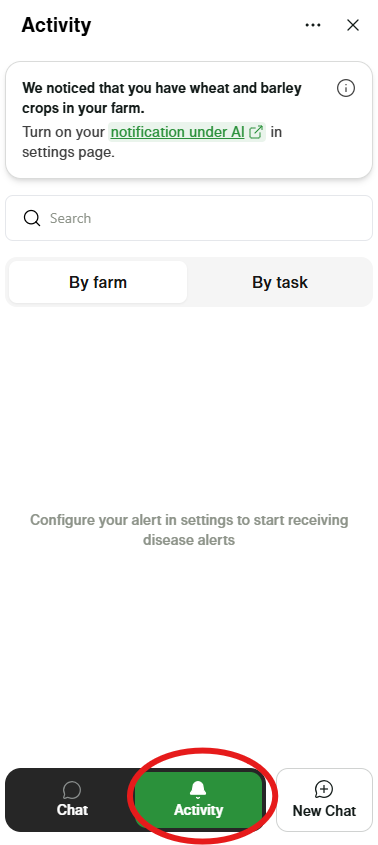
3. If you haven't switched on your alerts and have Wheat and/or Barley set as the crop type for selected fields, you'll see an alert at the top of this window.
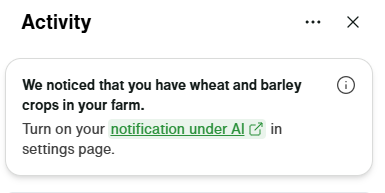
3. If you haven't switched on your alerts and have Wheat and/or Barley set as the crop type for selected fields, you'll see an alert at the top of this window.
4. Click the link and you'll be taken to the settings page. Select Allow Disease Risk Alert Notifications.
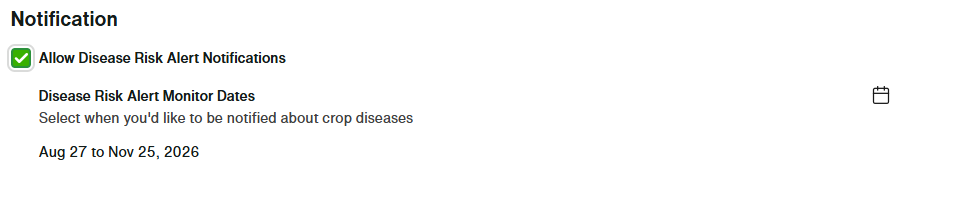
5. This will automatically switch on alerts for the next 3 months. If you'd like to shorten or extend this, click the calendar and update the dates you'd like the alerts to apply to.
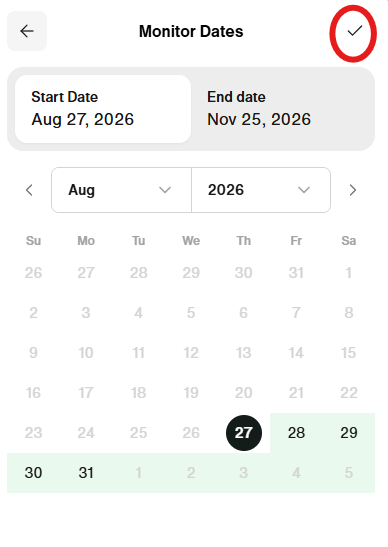
Once Disease Alerts are switched on, they will take 24 hours to start coming through, and will appear through Jonesy, under Activity.
Viewing Disease Alerts:
1. Click on Jonesy, then Activity.
2. Your alerts will appear, and you can toggle between By Farm or By Task.
3. Click on an alert to view it.
4. The detailed alert information will appear, along with your spray windows.
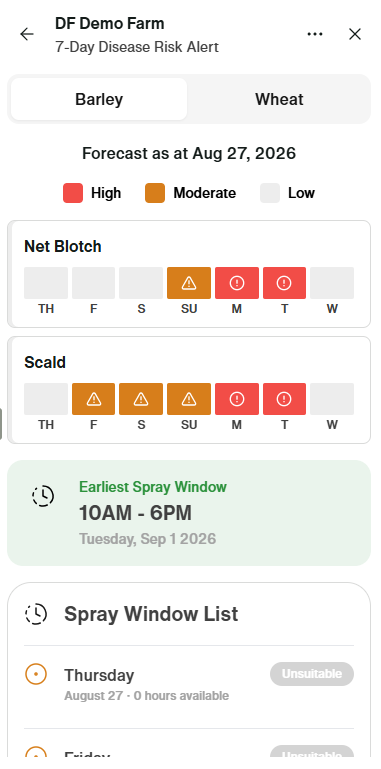
5. Scroll to the bottom of the alert to click through and assess the risk with our Digital Agronomist, Jonesy.
5. Scroll to the bottom of the alert to click through and assess the risk with our Digital Agronomist, Jonesy.